Running MatterSim and Other Python-Based Machine Learning Models
MatterSim is a deep-learning interatomic potential trained across the periodic table for materials property prediction. This page describes how to run MatterSim and other Python-based Machine Learning (ML) models on the Mat3ra platform, using three approaches of increasing customization:
- Using a pre-built workflow from the Mat3ra bank.
- Creating a new workflow from one of the available MatterSim
flavors/
templates. - Using the general Python flavor/
template and supplying the dependencies through requirements.txt.
The page also covers running jobs on a Graphics Processing Unit (GPU) and using multi-threading, and closes with a step-by-step video walkthrough.
1. Using a bank workflow
A common approach is to import an existing workflow from the Mat3ra bank into the user's account.
1.1. Import a bank workflow
First, navigate to the Workflows Bank page from the left sidebar. Then, search
for MatterSim and click Copy in the Action column on the desired
workflow (e.g. MatterSim total energy). See Copy bank workflow for details.
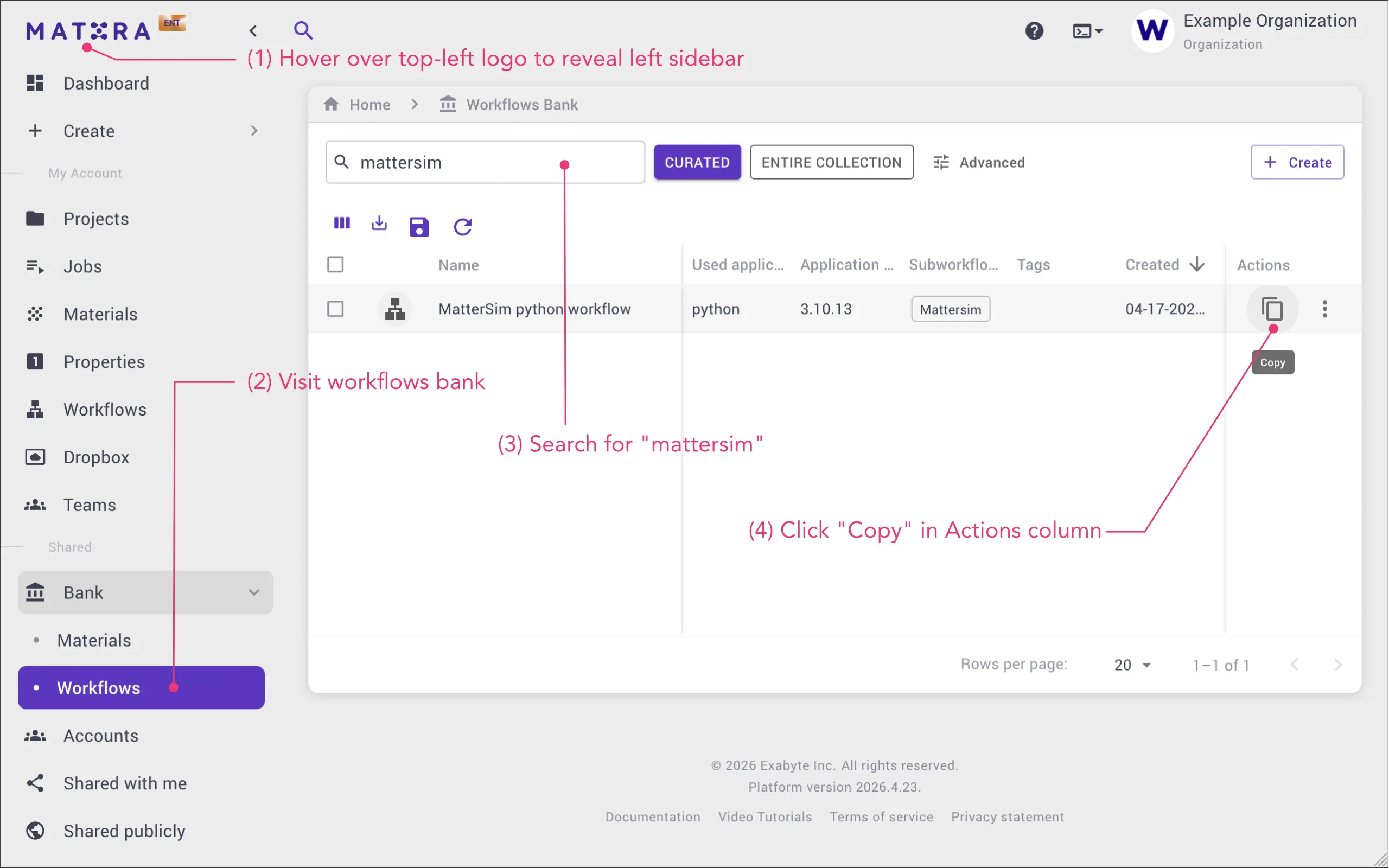
The workflow then appears in the user's Workflows list and becomes available for selection during job creation. It can be opened for inspection or further modification.
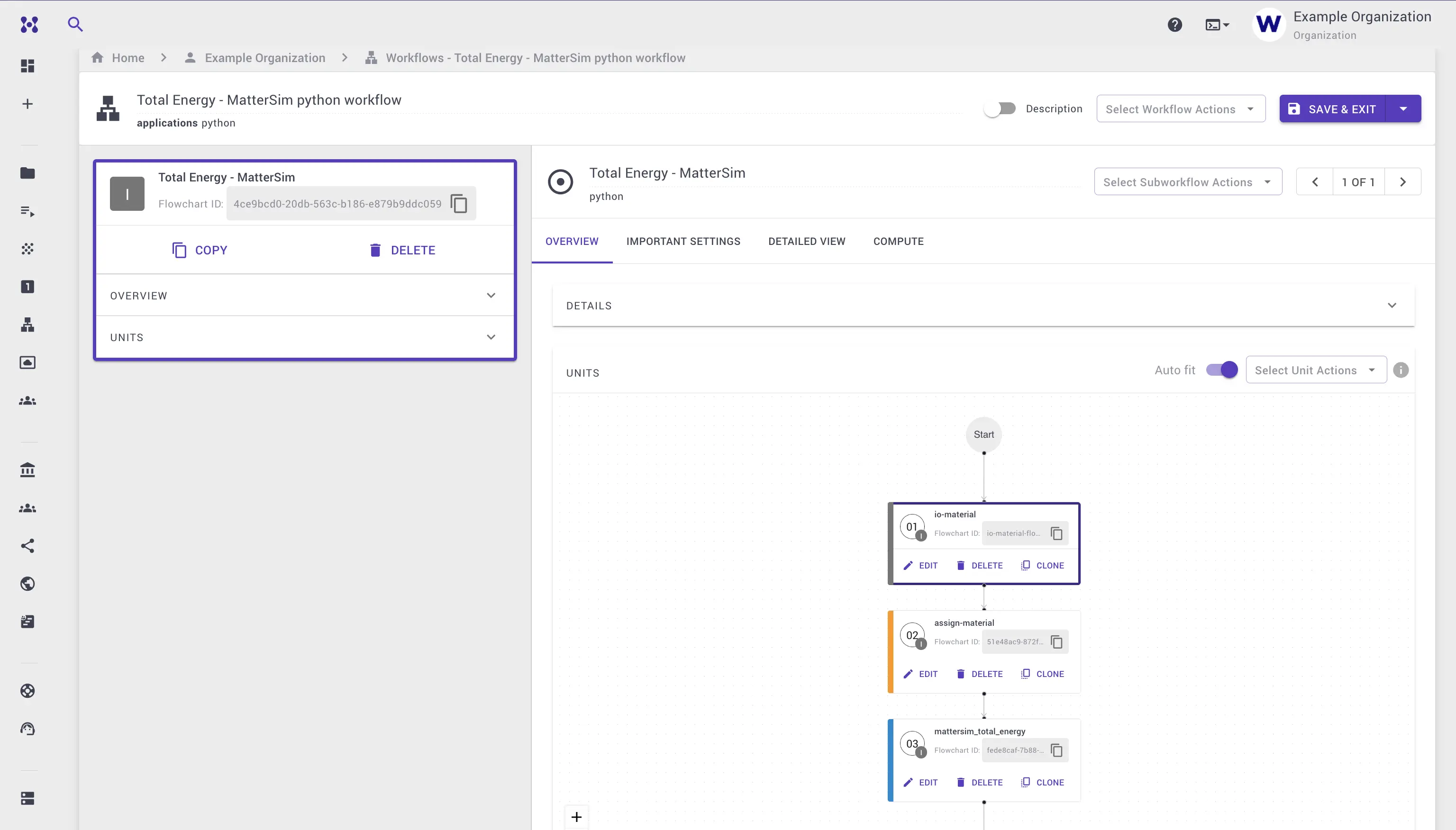
The MatterSim total energy workflow consists of three units:
- I/O Material unit: fetches the input materials from the job context. Its output is an array of materials.
- Assignment unit: takes the first item of that array and assigns it to a
new global variable named
MATERIAL. - MatterSim unit: builds an Atomic Simulation Environment(ASE) material definition from
MATERIALand runs MatterSim to predict the total energy (eV), stress, and other properties.
In addition to the main script.py, the MatterSim unit exposes a utils.py
helper script and a requirements.txt file. Extra Python packages required by
the script can be added to requirements.txt.
1.2. Create and submit a job
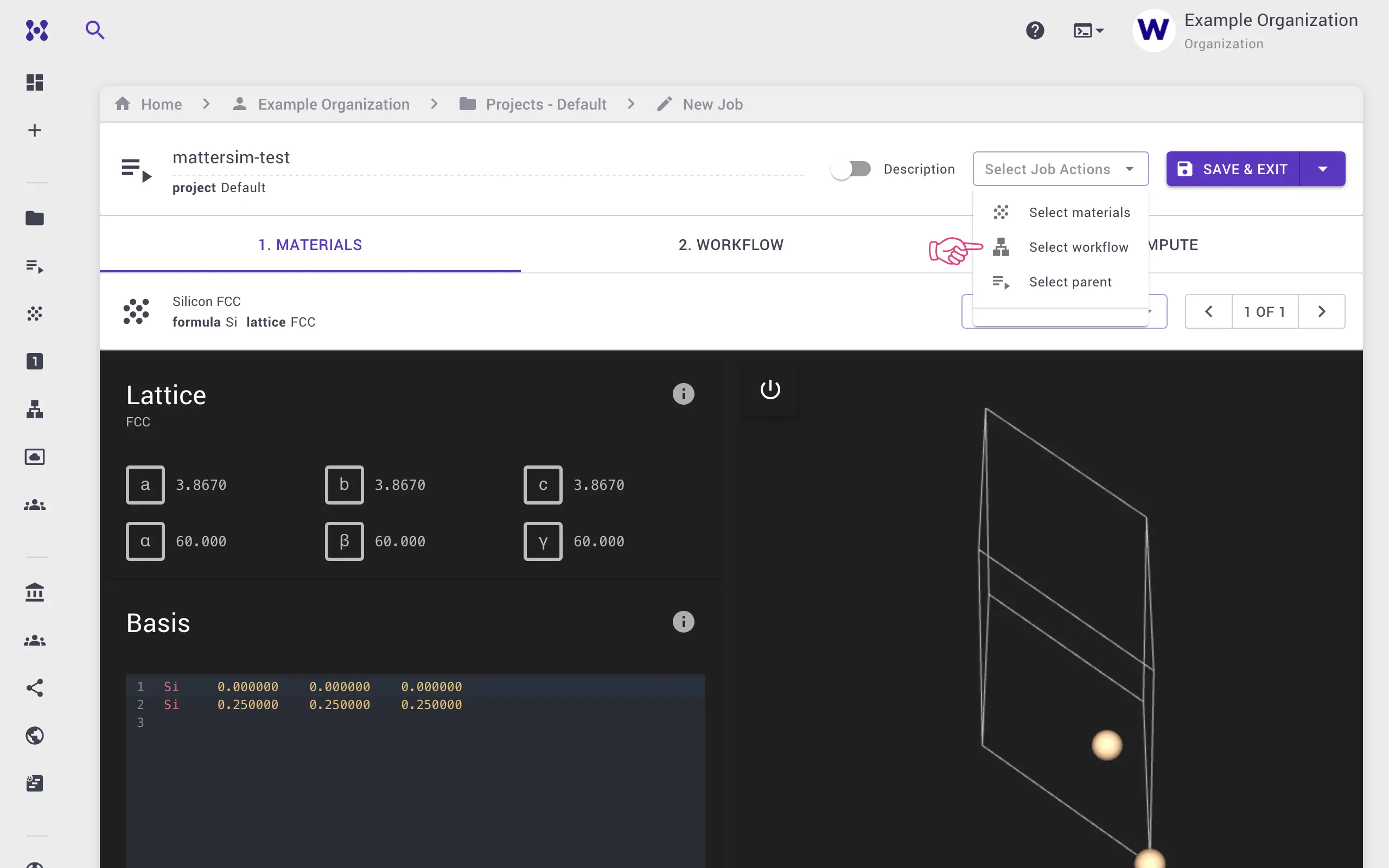
First, open the Jobs Designer from the left sidebar and click Create New Job (see Create job). The page is organized in three sections: material, workflow, and compute parameters.
In the Select Job Actions drop-down, choose the material and the workflow:
- Material: any structure is acceptable; the default is Silicon, while the video walkthrough below uses a nickel slab.
- Workflow: the MatterSim total energy workflow imported in the previous section.
The job can be renamed (e.g. MatterSim total energy) and the compute parameters (cluster, queue, number of processors, time limit, and others) can be adjusted under the Compute section. Save and exit the Jobs Designer.
Click Run in the Actions column to submit the job.
1.3. View the results
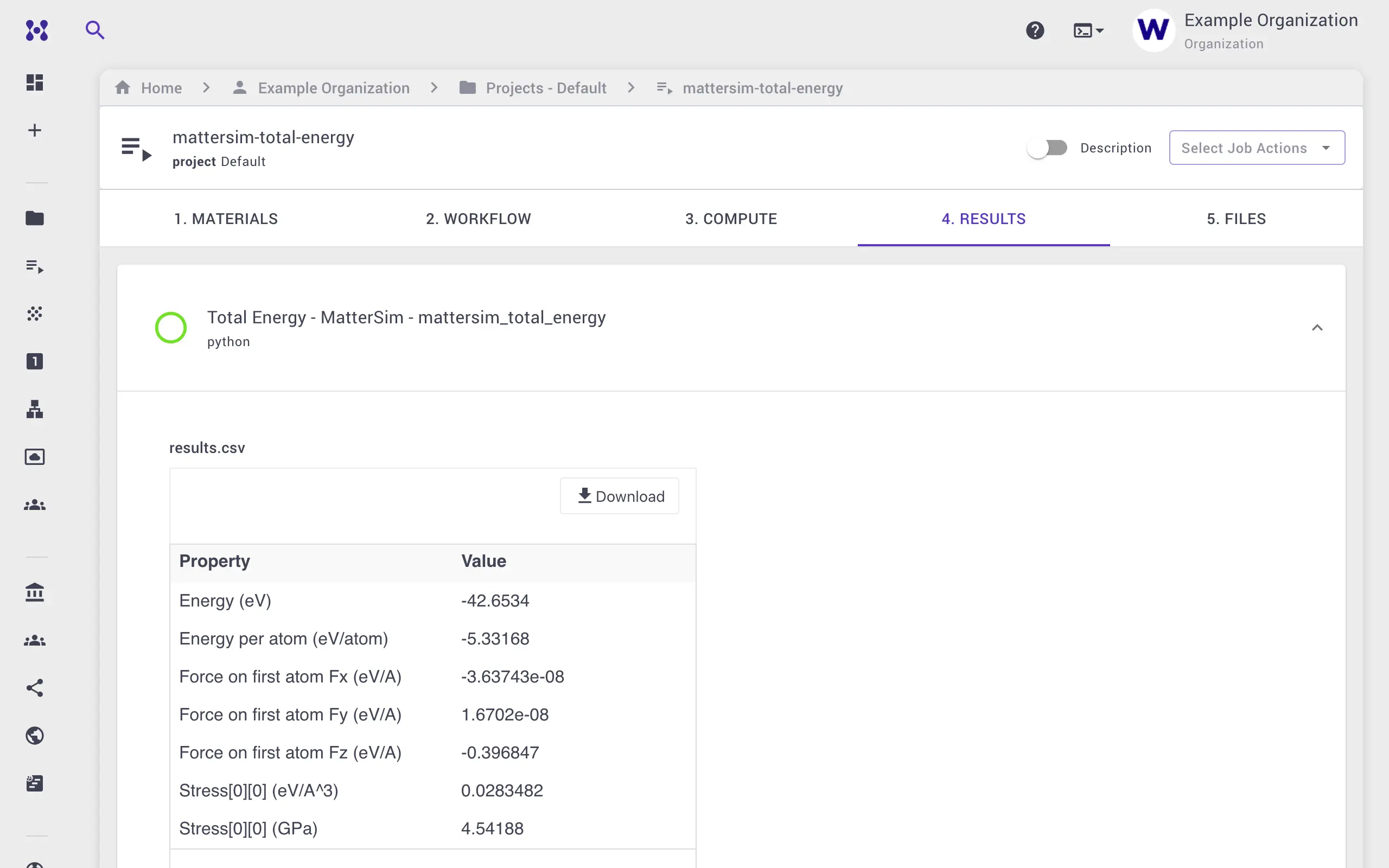
Once the job completes, the Job Viewer shows the results:
- The Results tab shows a summary of the predicted output properties.
- The Workflow tab → MatterSim unit exposes the standard output (raw log).
- The Files tab lists every input and output file for preview or download.
2. Creating a new workflow
When the desired workflow is not available in the bank, a new one can be built
from an existing MatterSim flavor/
2.1. Open the Workflow Designer and Unit Editor
First, open the Workflows page and click Create to start a new workflow. Expand the Details section and select Python Script as the application. Then, add an Executable unit and click EDIT to open the Unit Editor.
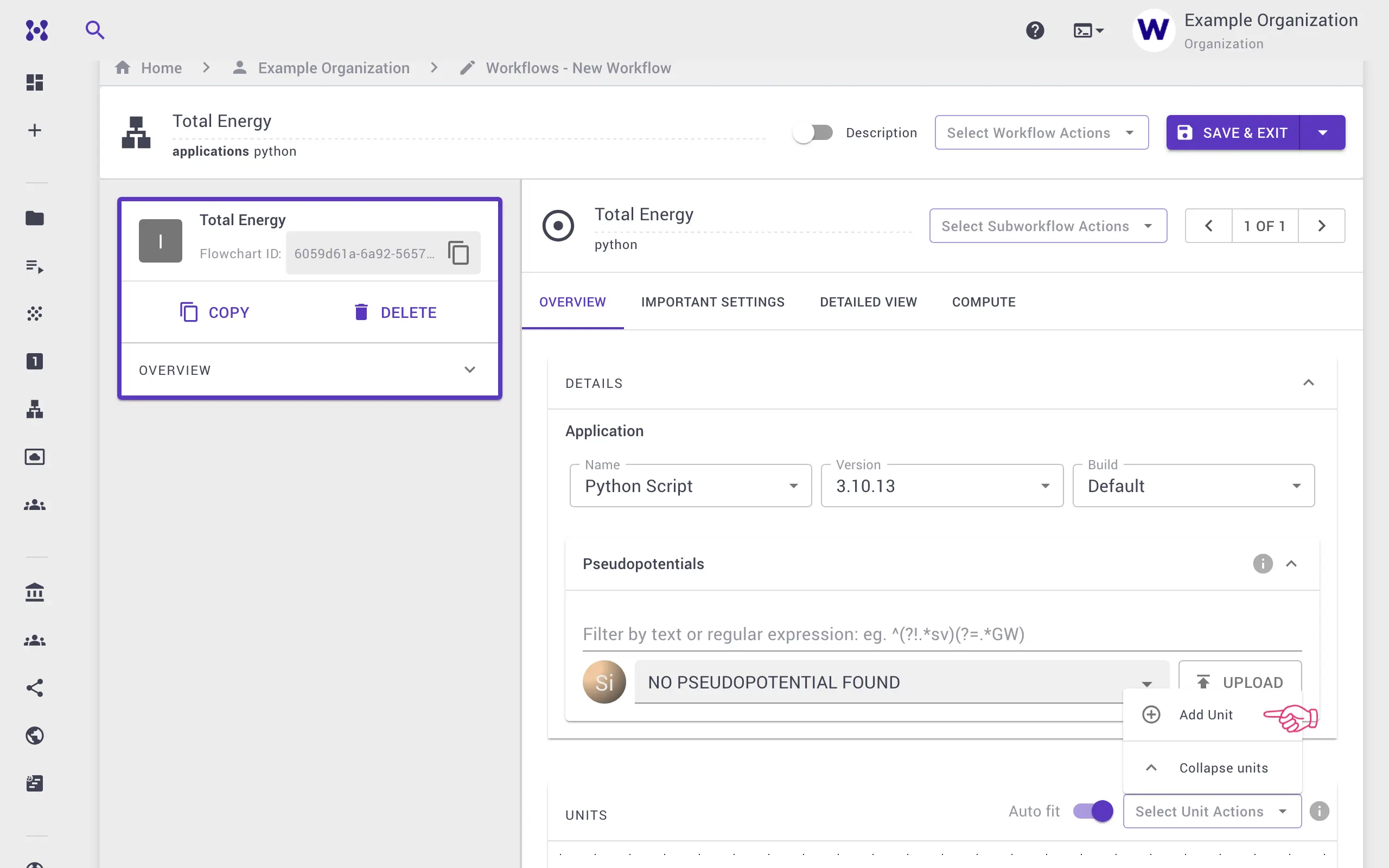
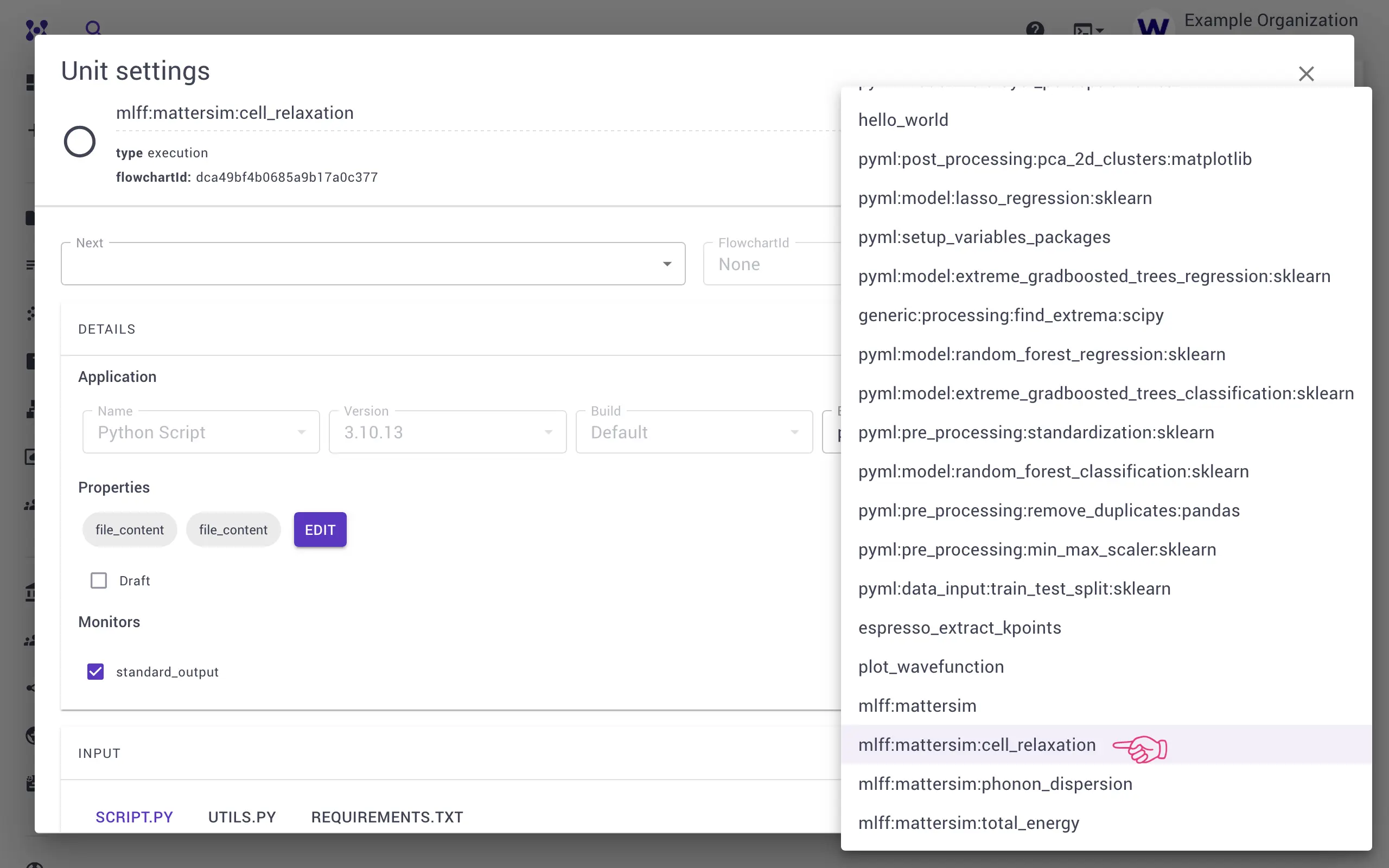
In the Unit Editor, expand the Details section and select
mlff:mattersim:cell_relaxation (under the Machine Learning Force Field
category) as the flavor.
2.2. Modify the unit script
Scroll down to edit the Python script if necessary. For example, to use ASE to build the input material directly (instead of pulling it from the job context), the material section can be replaced with:
| SCRIPT.PY | |
|---|---|
1 2 3 4 5 | |
where GaN denotes Gallium Nitride.
Close the Unit Editor by clicking the X button in the top right, then save and exit the workflow editor.
2.3. Create and run a job
Finally, create and run a job using this workflow as explained in Section 1 above.
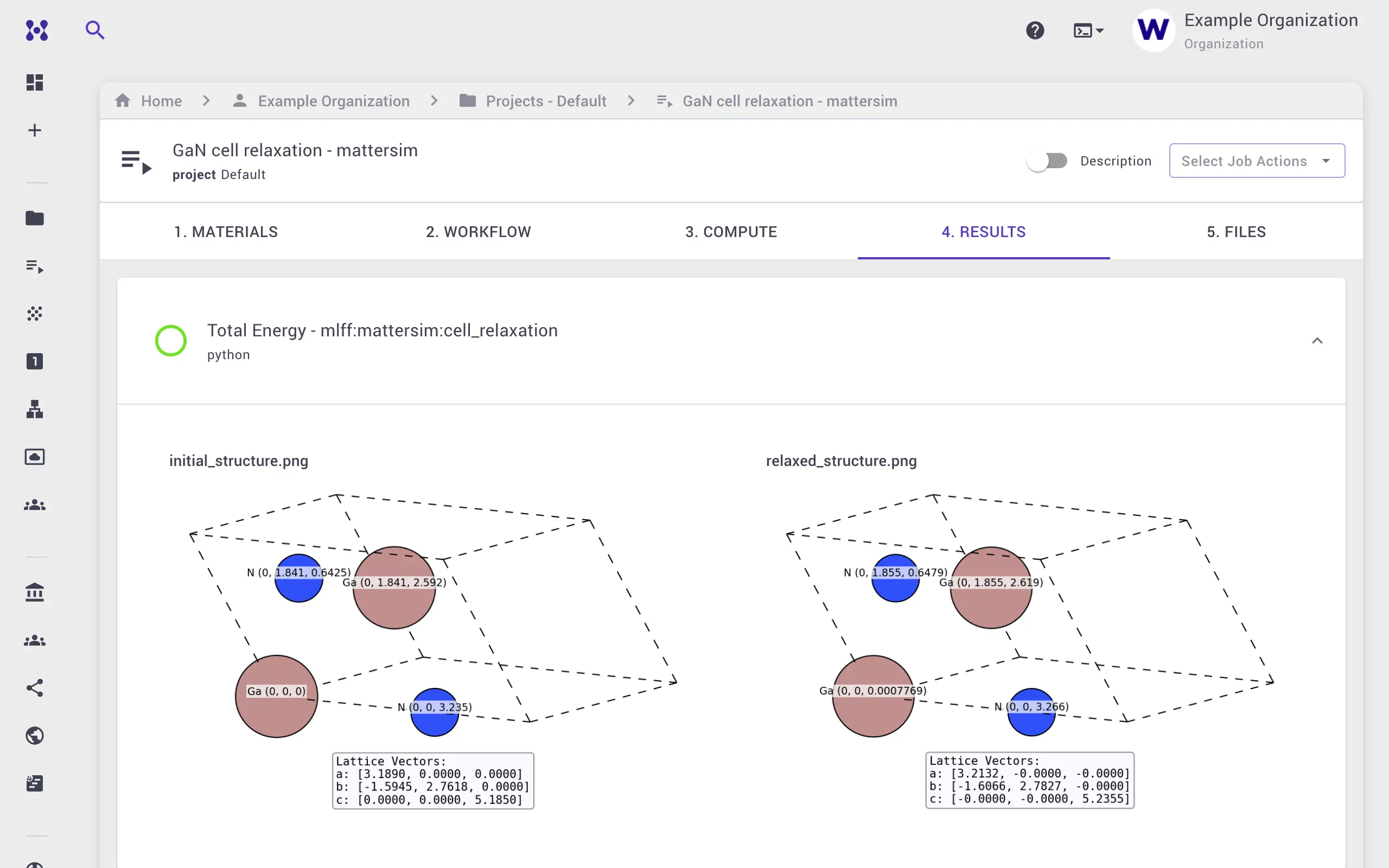
Once the job completes, the Results tab shows a side-by-side comparison of the
initial and relaxed structures, and the Files tab contains both structures in
.cif and .poscar formats.
3. Using the general Python template
To run any Python-based ML model that is not covered by an existing workflow or
flavor, the general Python flavor/
3.1. Create a new workflow from a template
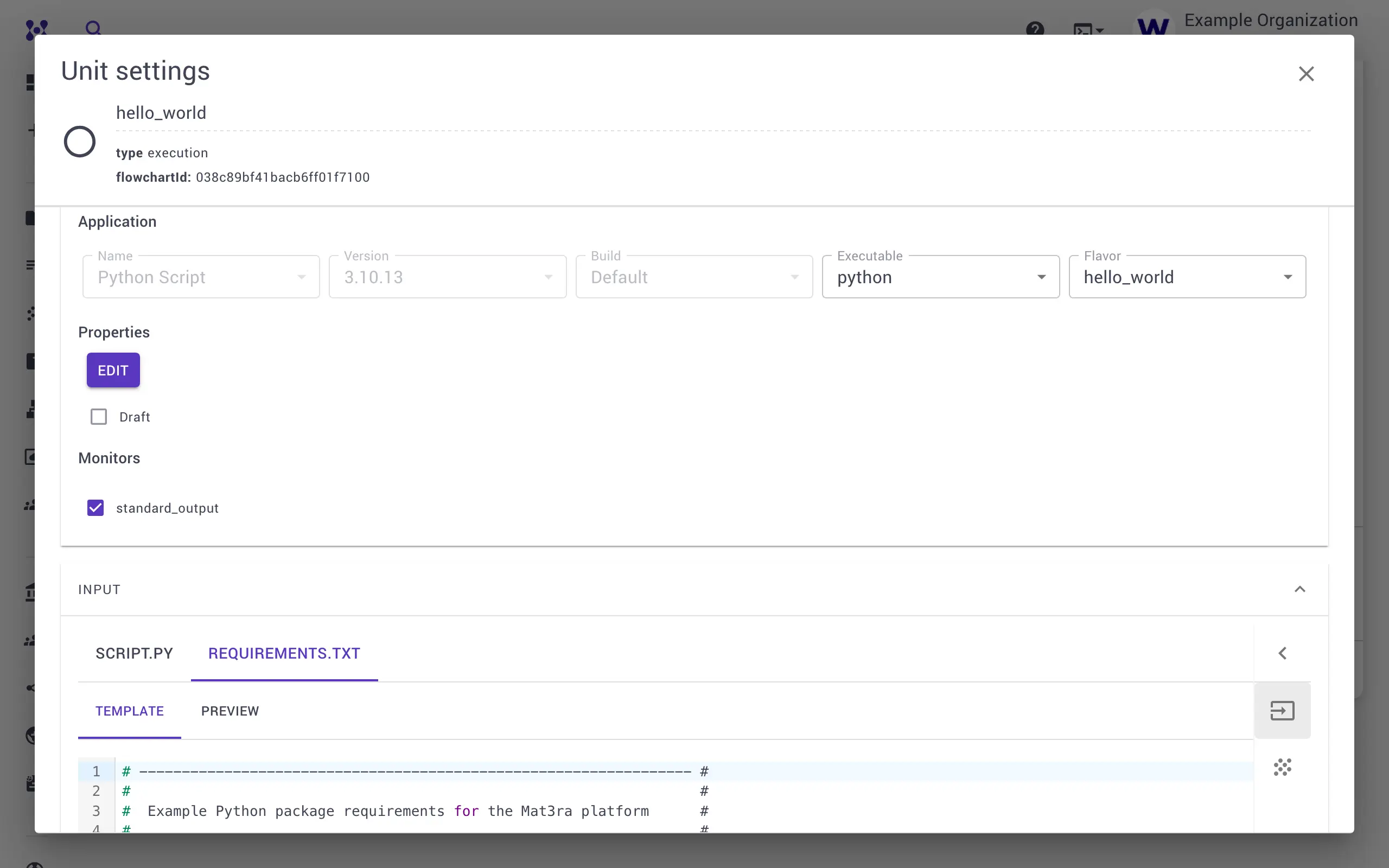
Create a new workflow as in the previous section and select the default python
flavor/requirements.txt tab
and write the code in the script.py tab.
3.2. Set up dependencies
As long as the model is Python-based and its dependencies can be installed via
pip, it runs on the Mat3ra platform.
Shared virtual environment
Python virtual environments are shared across jobs and users. As long as the
content (hash/fingerprint) of requirements.txt is unchanged, the same
environment is reused. The first job may take longer to complete because of
pip install, but subsequent runs start faster as no install is required.
If the expected versions of the dependencies are not picked up, they should
be pinned explicitly in requirements.txt.
Multi-threading
If the model can use multi-threading, the relevant environment variables should be set at the top of the script, before importing NumPy or any other library that uses them.
| SCRIPT.PY | |
|---|---|
1 2 3 4 5 6 7 8 9 10 11 | |
3.3. Create and run a job
Just as in Sections 1 and 2 above, create and run a job using this workflow.
4. Notes about running on GPU
Because MatterSim is a PyTorch-based model, it benefits
significantly from GPU execution. To run a MatterSim job on GPU, it should be
submitted to one of the platform's GPU queues, for example the GOF queue on
the Google Cloud cluster (internal identifier
Cluster-001).
4.1. Confirm GPU availability
To verify that the job actually runs on GPU, a debug print can be added to the script, and the standard output can be inspected under the Files tab once the job completes:
| SCRIPT.PY | |
|---|---|
1 2 3 | |
For non-PyTorch frameworks, the equivalent check should be used (for example,
tf.config.list_physical_devices('GPU') for TensorFlow).
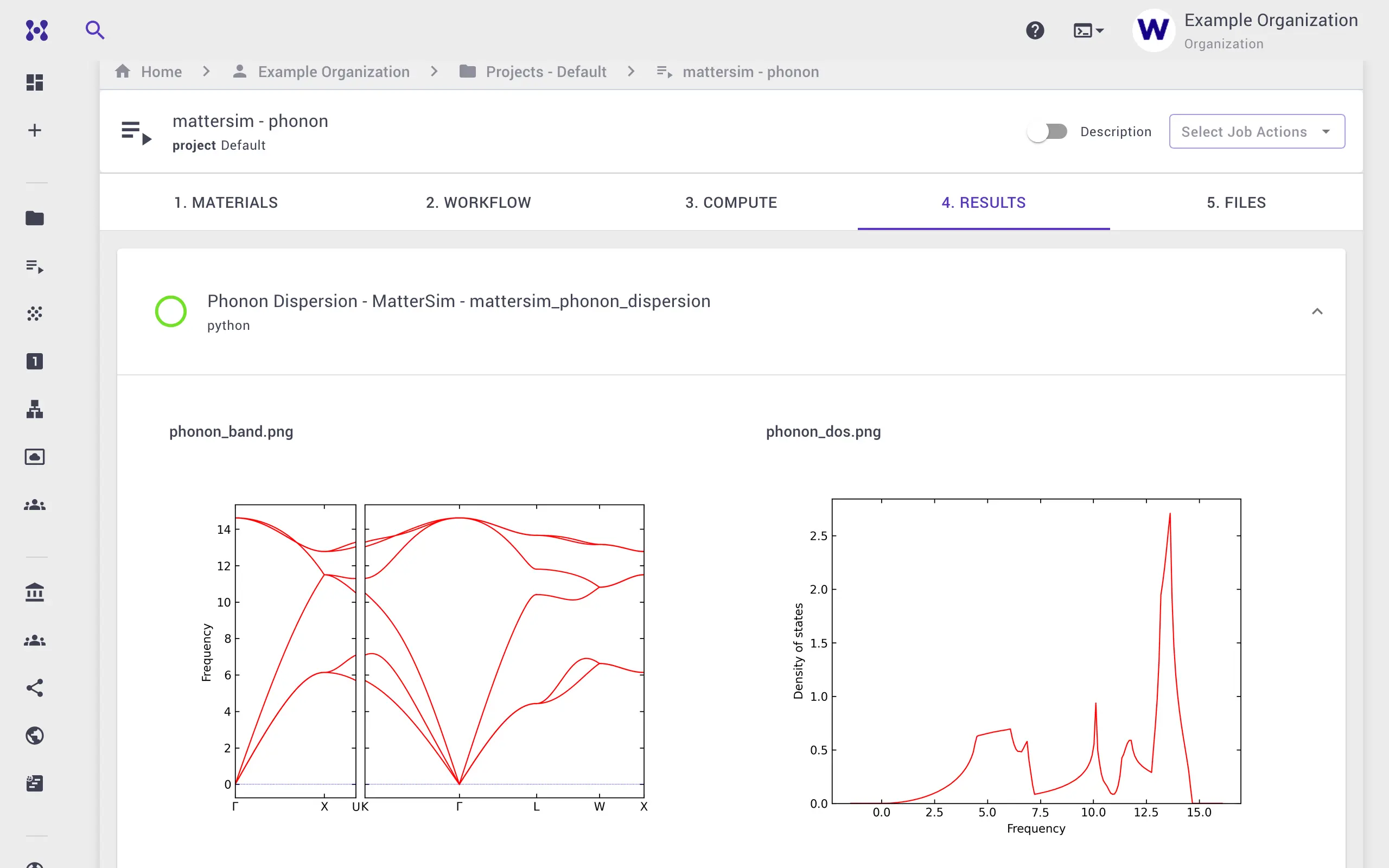
4.2. Example results
Once the run completes, the Results tab shows the phonon dispersion and the phonon density-of-states plots.
5. Video walkthrough
The animation below walks through the entire flow on the platform.
6. References
- Yang, H. et al. "MatterSim: A Deep Learning Atomistic Model Across Elements, Temperatures and Pressures." arXiv:2405.04967 (2024). arxiv.org/abs/2405.04967
- MatterSim GitHub repository
- MatterSim documentation
- Atomic Simulation Environment (ASE)