Create Materials with VESTA under Remote Desktop
This tutorial describes the steps necessary for connecting to the platform via a Remote Desktop in order to create and manipulate a material structure through VESTA graphical analysis and visualization software.
The new crystal structure can be retrieved within the account-owned collection of materials, accessible via the Materials Explorer of the Web Interface. This transfer of the structure information is achieved through the Dropbox functionality.
Additional analysis software similar to VESTA can be retrieved under Remote Desktop, as listed here.
1. Access the Remote Desktop
A Remote Desktop Connection must be opened via the Web Interface in order to run graphical interface programs for material analysis and visualization.
The instructions for opening and launching a Remote Desktop session can be found in this page.
2. Launch VESTA visualization software
Follow this procedure to start a session of the VESTA graphical materials analysis software.
Avoid compute-intensive visualization tasks
Running excessively intensive visualization tasks when interacting with analysis software such as VESTA should be avoided, as it may interfere with other operations on the platform.
3. Create a new crystal structure with VESTA
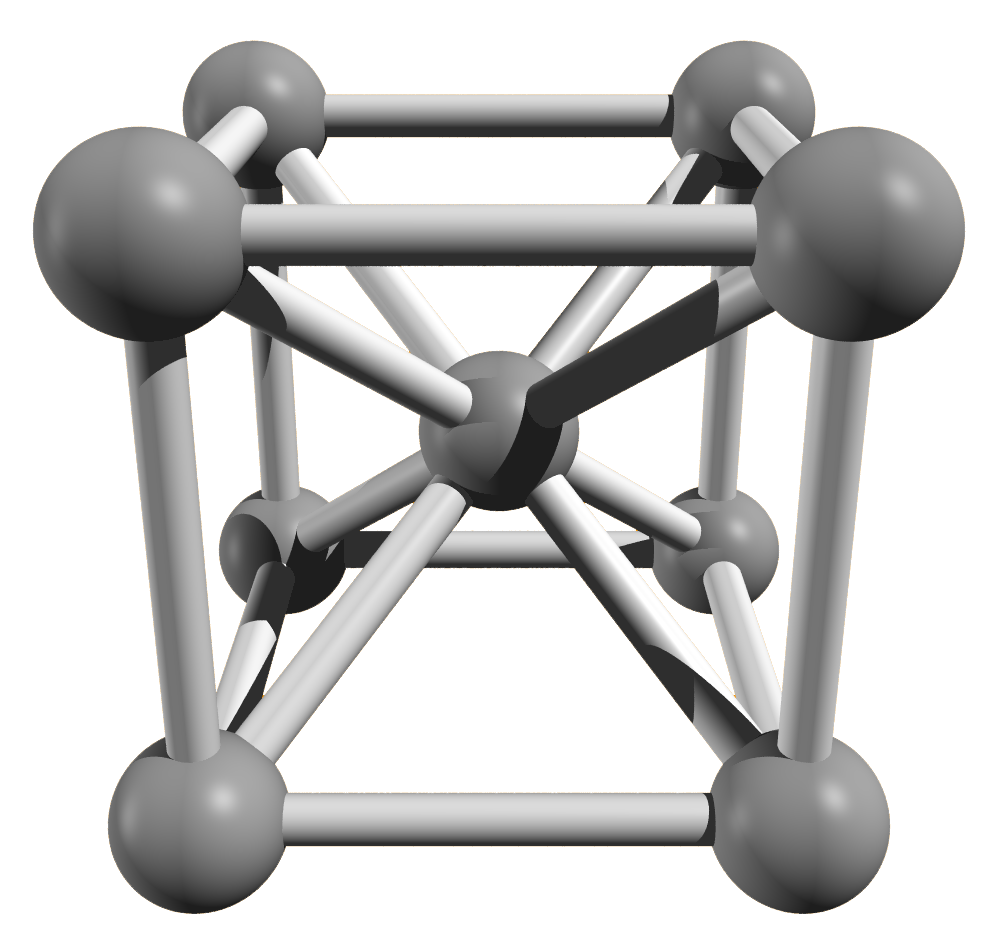
This example creates a bcc Iron structure in its two-atom conventional unit cell representation. The basic features of this crystal structure are:
- Space Group: Im-3m
- Bravais Lattice: body-centred cubic
- Lattice Constant: 2.87 Å
- Atomic Positions of Fe atoms: (0,0,0); (1/2,1/2,1/2)
A visual representation of the bcc Iron crystal structure is shown below.
3.1. Open the New Structure dialog
In order to create a new material structure through VESTA, click the "New Structure" option at the top of the File Menu. This opens a "New Data" dialog, where new crystal structures can be defined by entering their relevant crystallographic structural information and parameters.
3.2. Insert lattice parameters and atomic positions
First, enter the lattice parameters of the Iron body-centred cubic unit cell under the "Unit Cell" tab of the dialog. Select the relevant cubic space group (Im-3m, number 229).
Second, insert the atomic positions and chemical identity of the atoms under the "Structure Parameters" tab, clicking "New" to add each atom. Only a single Fe atom at the origin needs to be added, since the second atom at the centre of the unit cell is related to it by the space group symmetry.
Close the "New Data" dialog and record the changes by clicking OK. The view returns to the main VESTA interface, where the crystal structure of bcc Iron can be visualized and manipulated.
4. Save the structure as POSCAR to Dropbox
Following the creation of the bcc Iron crystal structure, the structural data can be exported under the POSCAR file format directly to the Dropbox Folder. Click the "Export Data" option under the "File" menu.
In the resulting dialog, select the dropbox folder accessible via the home folder, and choose the POSCAR file format. A suitable filename can be entered. The dialog allows choosing between fractional or Cartesian coordinates, and whether to convert to the Niggli reduced cell representation.
5. Download the structure
After exiting the Remote Desktop session, return to the Web Interface. The POSCAR file saved in the preceding step can be retrieved under the Dropbox Page, accessible through the Left-hand Sidebar Menu.
The POSCAR file should be downloaded to the local disk following these instructions.
6. Upload the structure to the materials collection
After switching to the Materials Explorer Page, the POSCAR file can be uploaded and added to the account-owned collection of materials, as explained in this page.
7. Video walkthrough
The animation below demonstrates all steps in this tutorial: creating and visualizing a bcc Iron crystal structure through VESTA under the Remote Desktop, saving the structure in POSCAR format to the Dropbox Folder, and retrieving and uploading it to the materials collection via the Web Interface.