Machine Learning: Predict With a Random Forest Classifier
This tutorial demonstrates how to perform predictions using a Random Forest 1 trained for classification via Scikit-Learn 2.
Pre-requisite
The Train Classification tutorial must be completed before proceeding.
1. Acquire the prediction data
The data used in this example comes from the QSAR group's biodegradation database on Kaggle 3. The dataset consists of 41 unique molecular descriptors. Before uploading, the "Class" column must be removed from the dataset. The resulting file is referred to as "data_to_classify_with.csv".
2. Upload the data
Click the Dropbox button in the left sidebar to navigate to the Dropbox Page. Then click Upload:
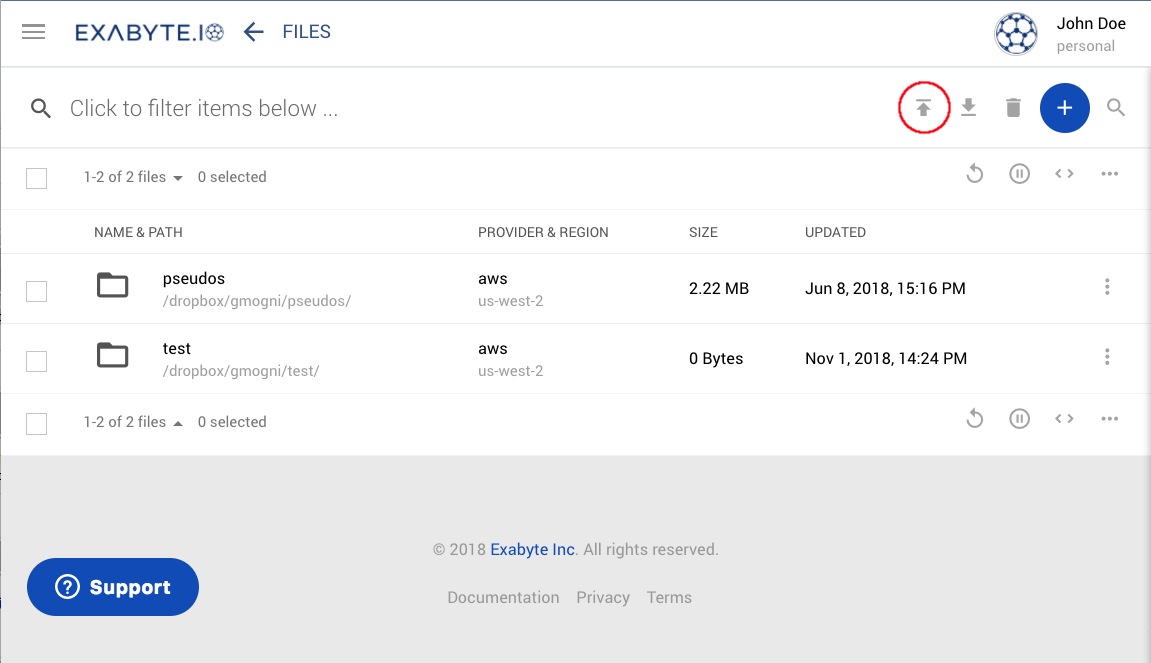
When the browser's upload window appears, navigate to the downloaded file and select it. If successful, the file appears in the dropbox.
3. Create the ML job
Create a new job by clicking Create Job in the left sidebar. Give the job a descriptive name, such as "Python ML Tutorial Prediction". Then click the Actions Button and choose Select Workflow.
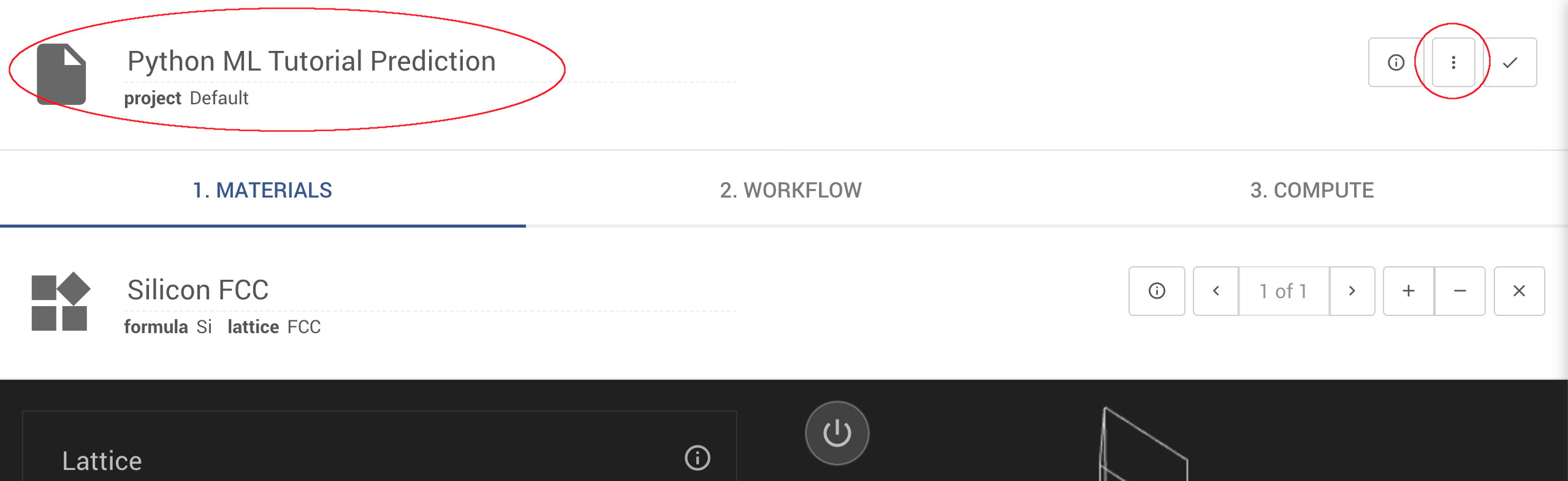
In the Select Workflow dialogue, search for "workflow:pyml_predict" and select it.
A diagram and detailed description of this workflow can be found here.
4. Select the dataset
Once the ML Predict workflow is selected, the Materials tab is replaced with a Dataset tab. Click the Actions Button and choose Select Dataset. Select "data_to_classify_with.csv" from the file explorer.
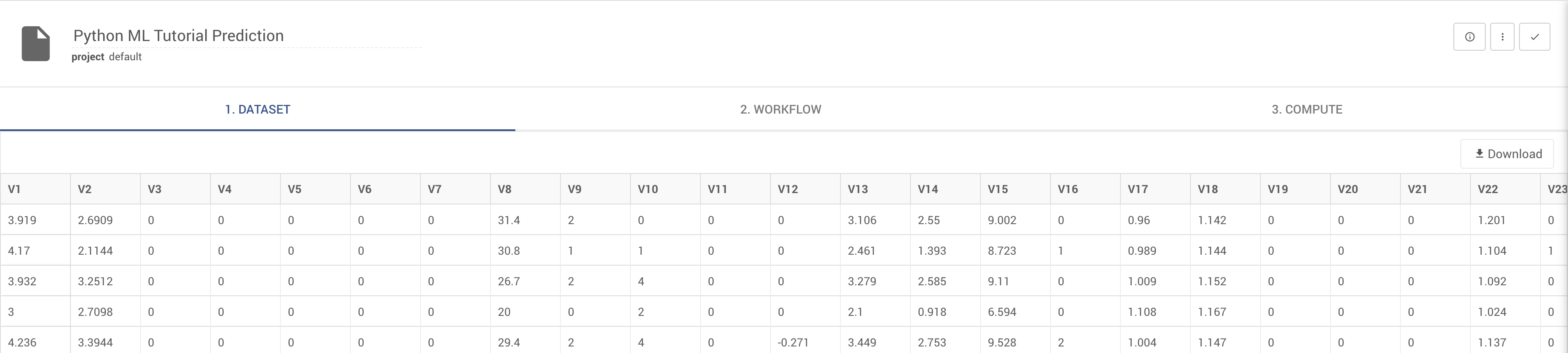
A preview of the data appears on the dataset tab, confirming the data has been loaded.
5. Inspect the ML workflow
Open the Workflows Tab to view the predict workflow. Two subworkflows are available: Set Up the Job and Machine Learning.
Do not modify the setup subworkflow
The Set Up the Job subworkflow was automatically configured during the training process. Modifying it can render the predict workflow inoperable or produce inaccurate results.
The Machine Learning subworkflow contains the trained model steps. No further configuration is required — the prediction job is ready to submit.
6. Submit the job
Click the check-mark in the upper right of the job designer, in the Header Menu, to save the job. Then run the job.
7. Analyze the prediction results
After a few minutes, the job completes. The Results tab displays a CSV preview of predictions.csv, containing the row-by-row predictions generated by the model. This file is generated inside the Model Train and Predict unit.
8. Video walkthrough
This tutorial is demonstrated in the following animation: