Train a K-Means Clustering Model with Scikit-Learn
This tutorial demonstrates how to train a K-Means Clustering 1 model using Scikit-Learn 2.
1. Acquire training data
Unsupervised learning 3 takes in unlabeled training data and generates its own labels. It is often used as an exploratory tool to find collections of similar items — for example, molecules or crystals with similar properties.
The data used in this example was acquired from Kaggle 4. It consists of a group of 21,263 superconductors with the following properties:
- Atomic Mass (AMU)
- First Ionization Energy (kJ/mol)
- Atomic Radius (pm)
- Density (kg/m³)
- Electron Affinity (kJ/mol)
- Fusion Heat (kJ/mol)
- Thermal Conductivity (kJ/mol)
- Valence (number of bonds)
For each property, various statistics including mean, weighted mean, and standard deviation are calculated. The dataset was originally posted for predicting superconductor critical temperatures 5, but this tutorial uses it to separate the superconductors into clusters.
Due to the platform's upload limit (20 MB), the dataset is truncated to 15,000 examples (16 MB). A pre-processed version is available for download here.
2. Upload the training data
Click the Dropbox button in the left sidebar to navigate to the Dropbox Page. Then click Upload:
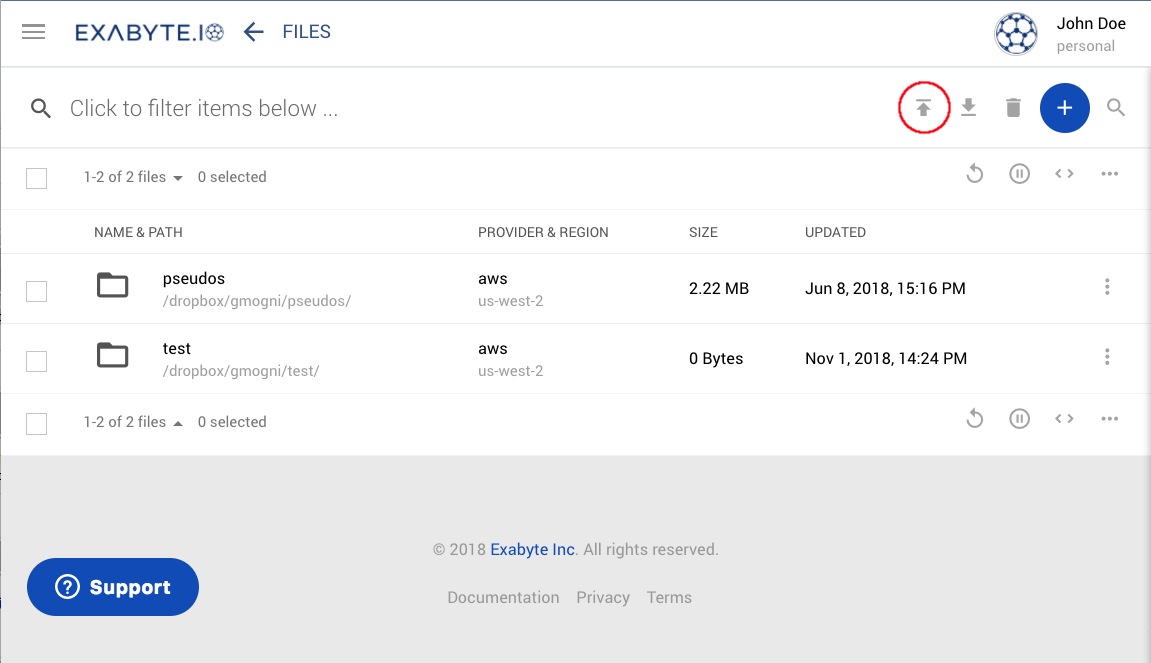
When the browser's upload window appears, navigate to the downloaded file and select it. If successful, the file appears in the dropbox.
3. Copy the clustering workflow from the bank
Click the Bank Workflows button in the left sidebar to navigate to the Bank Workflows Page. Search for the "Python ML Train Clustering" workflow owned by the "Curators" account, and copy it to the account.
A diagram and detailed description of this workflow can be found here.
4. Create the ML job
Create a new job by clicking Create Job in the left sidebar. Give the job a descriptive name, such as "Python ML Tutorial". Then click the Actions Button and choose Select Workflow.
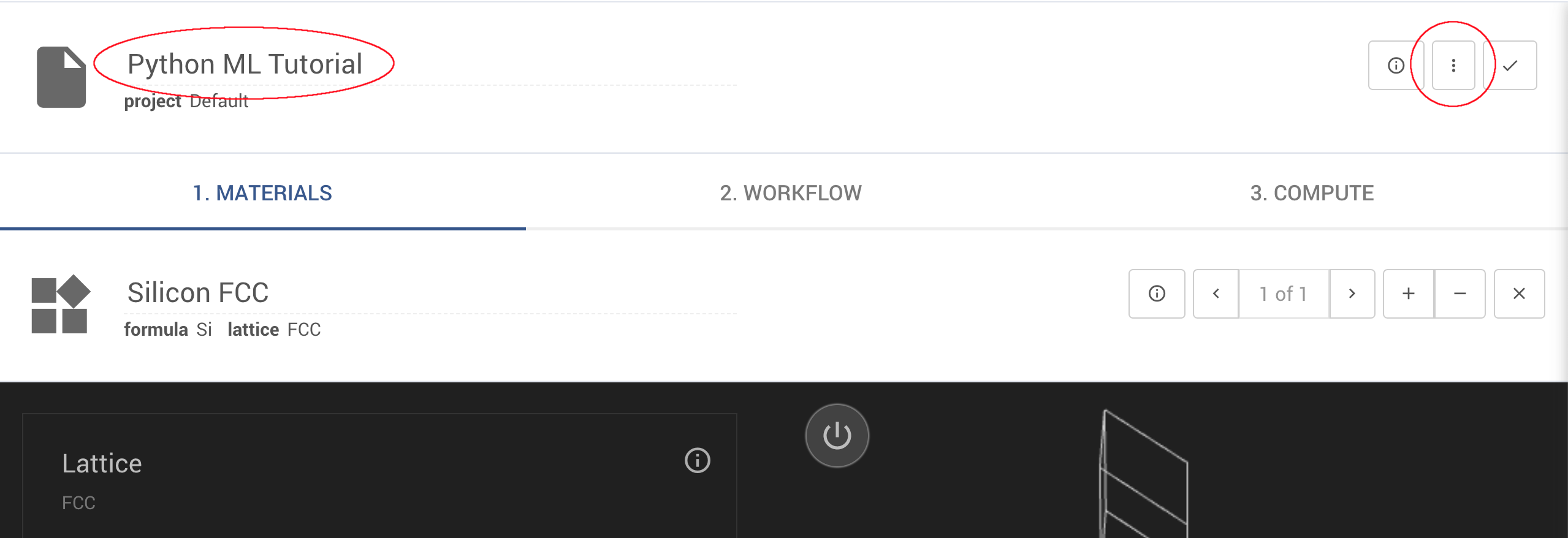
In the Select Workflow dialogue, search for "Python ML Train Clustering" and select it.
5. Select the dataset
Once the ML Training workflow is selected, the Materials tab is replaced with a Dataset tab.
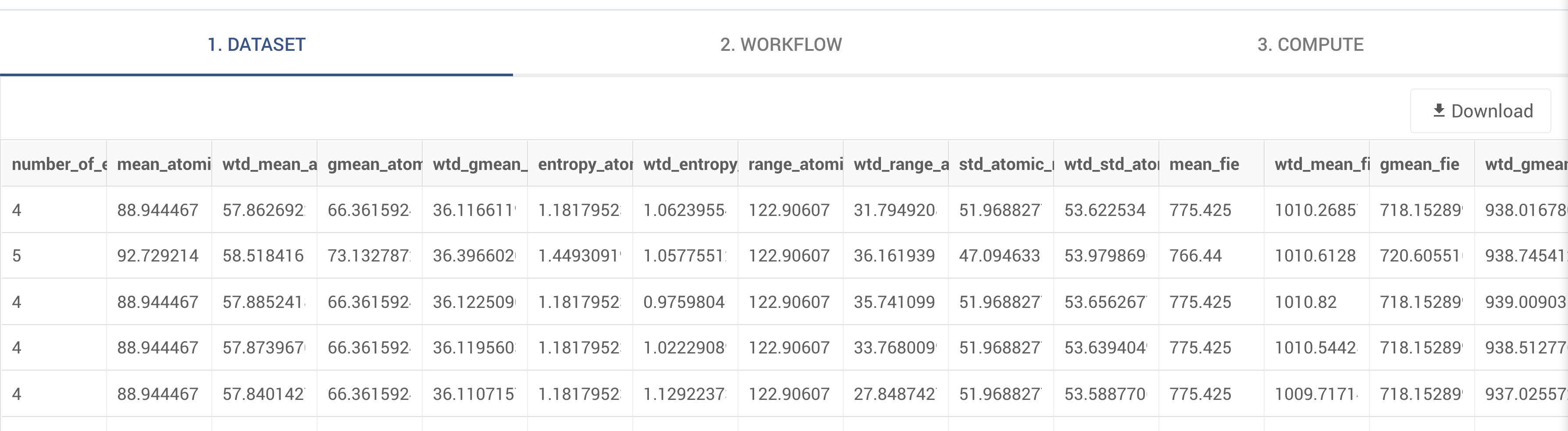
Click the Actions Button and choose Select Dataset. Select "clustering_data.csv" from the file explorer. A preview appears on the dataset tab, confirming the data has been loaded.
6. Configure the workflow
Open the Workflows Tab to view the training workflow. Two subworkflows are available: Set Up the Job and Machine Learning.
Do not modify the setup subworkflow
The Set Up the Job subworkflow is automatically configured during training. Modifying it can disrupt the Predict workflow.
Select the Machine Learning subworkflow. The following workflow units are visible:
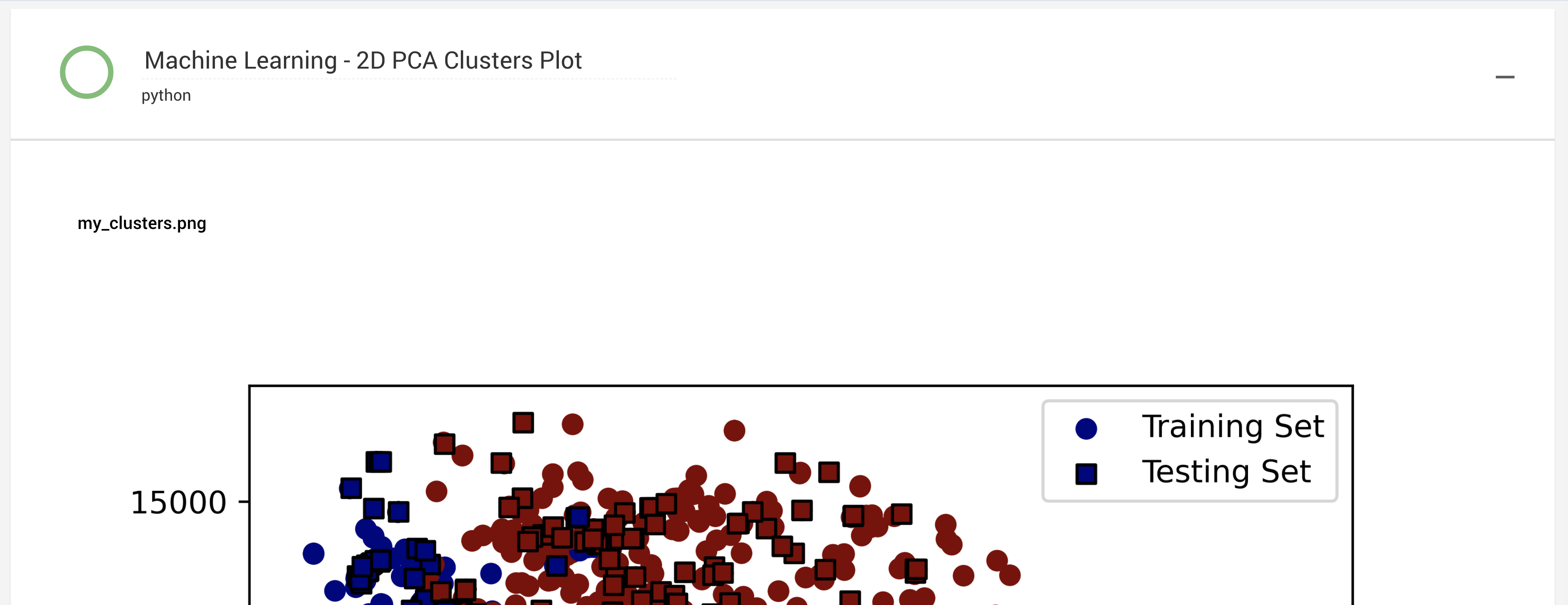
Setup Packages and Variables— configures the job and downloads required packages viapipData Input— reads the training data from diskTrain Test Split— splits the data into training and testing setsData Standardize— scales the data to mean 0 and standard deviation 1Model Train and Predict— handles model training and prediction2D PCA Clusters Plot— draws the clusters projected onto the first two principal components 6
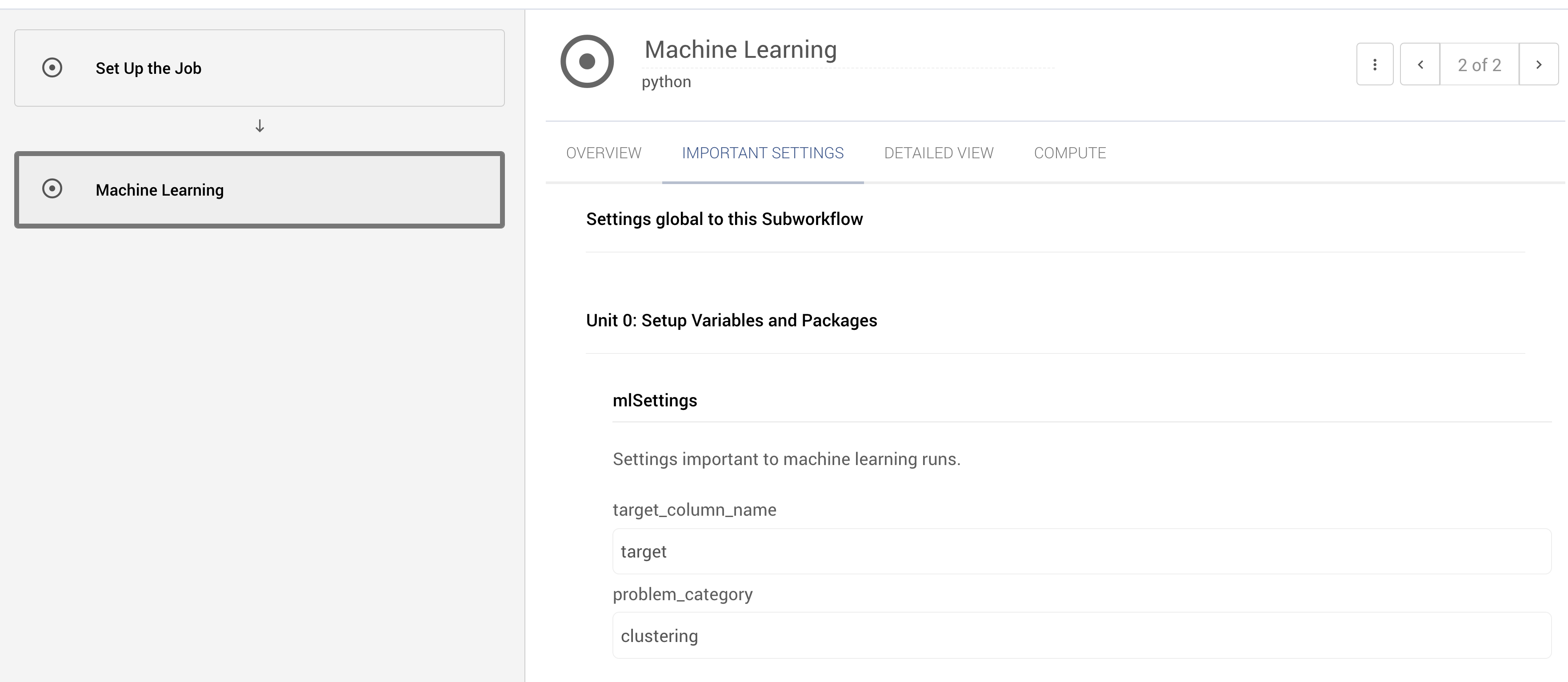
6.1. Set the problem category
Open the Important Settings portion of the workflow editor. Set problem_category to "clustering".
6.2. Adjust the number of clusters
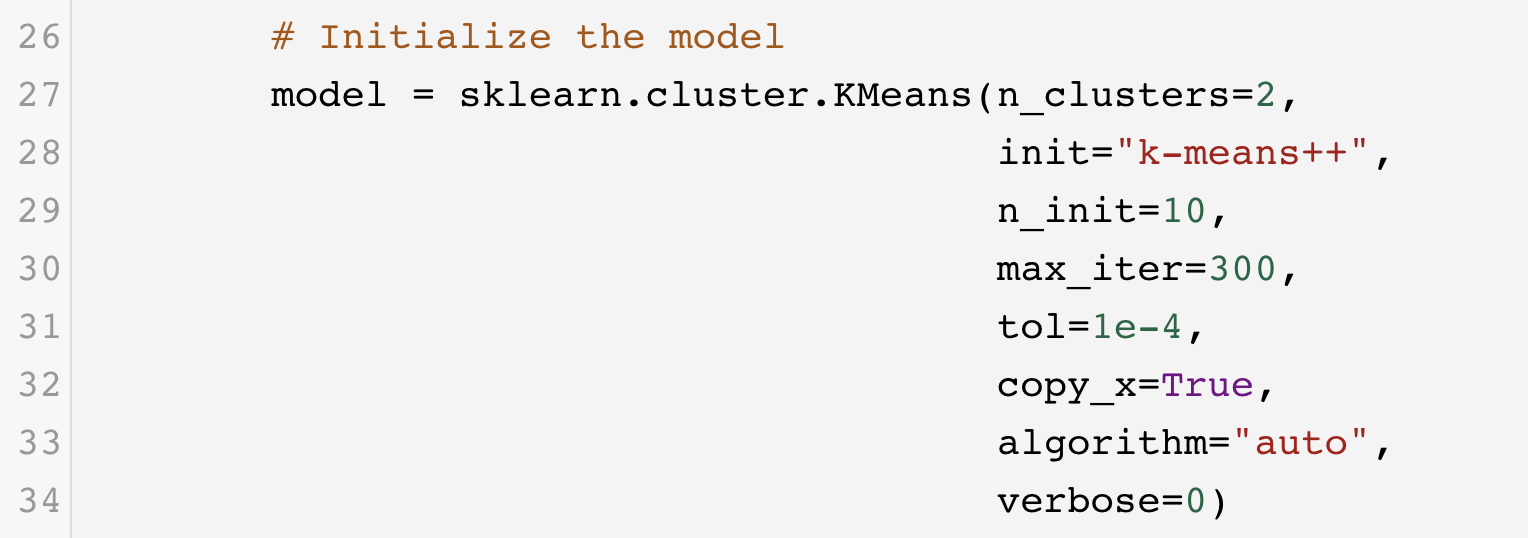
By default, the workflow splits the dataset into 4 clusters. In order to change this, click the Model Train and Predict unit to open the editor. Scroll to line 27 and change n_clusters from 4 to 2. Close the unit editor.
7. Submit the job
Click the check-mark in the upper right of the job designer, in the Header Menu, to save the job.

The job can now be run.
8. Analyze the training results
After a few minutes, the job completes. The Results tab shows two calculated properties. The first, Machine Learning - Model Train and Predict, is the predict workflow generated by the training job, which can be used to assign new data points to the identified clusters.
The second result is Machine Learning - 2D PCA Clusters Plot, which draws the clusters projected onto their first two principal components. Each color represents a different group; circles represent the training set and squares represent the testing set.
9. Video walkthrough
This tutorial is demonstrated in the following animation: